Google Messages Chat Themes: 7 Must-Know Tips for 2026
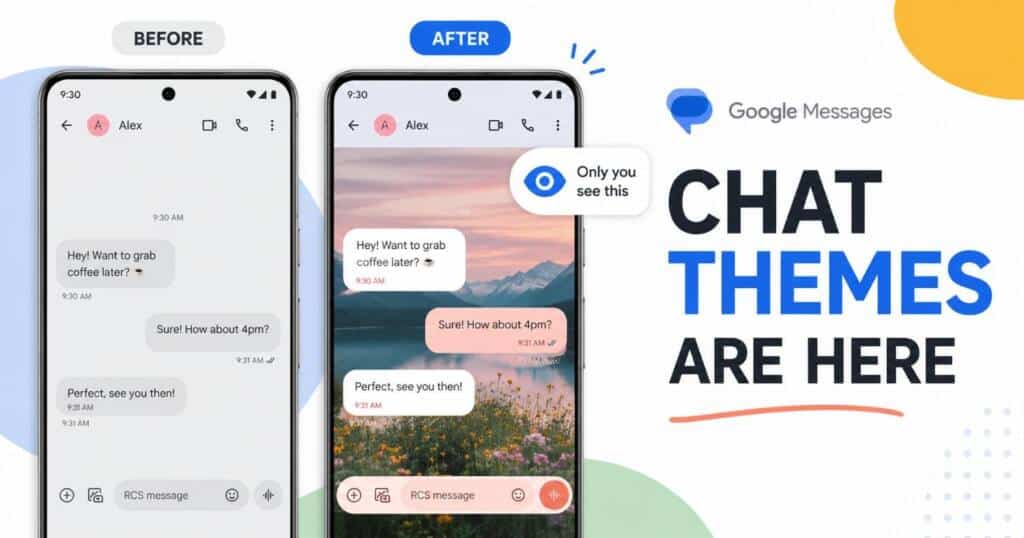
Google Messages chat themes let you set custom wallpapers and colors per chat, visible only to you. Here is how to use them and why you may not see them yet.
For years, Google Messages let you tint a conversation with a basic color and not much else. That changed on June 23, 2026, when Google started rolling out Google Messages chat themes, a proper customization screen that finally lets you put a wallpaper behind your texts and style each thread the way you want. If you have ever envied the backgrounds your iPhone friends set in iMessage, this is Android catching up. It was overdue. Long overdue.
The catch is that it is arriving slowly. Only some people have it so far, and there are a few rules worth knowing before you go hunting for it. Here is the full, practical guide to Google Messages chat themes: what the feature does, how to use it, what you need, and why it might not be on your phone yet.
What Google Messages Chat Themes Are
Google Messages chat themes is the new name and the new home for chat customization. Where you used to tap “Change colors” and pick from a short list of tints, you now tap “Chat theme” and get a much deeper set of tools. Once the feature reaches your phone, that old “Change colors” label simply becomes “Chat theme.”
Open the new screen and a live preview of the conversation sits at the top, so every edit you make to your Google Messages chat themes shows up instantly, color and wallpaper together, before you ever commit to it. Below that sit two controls. The first is a carousel of colors that follows your phone’s Dynamic Color palette, the same system that themes the rest of modern Android around your wallpaper, which keeps everything visually consistent. The second is wallpapers. It is a curated set of backgrounds you drop behind the whole chat. Together they turn a flat thread into something that feels like yours. The difference is obvious at a glance. Night and day.
This is the kind of personalization that Telegram and WhatsApp have offered for ages. So in one sense, Google is late to the party. In another sense, Google Messages chat themes matter more than they look, and the reason comes down to a single change in how they work. That change is worth its own section, because it flips an assumption people have held about Messages for years and quietly makes the whole feature feel more personal than the old color picker ever did.
The Big Change: Only You See Your Theme
Here is the single most important thing to understand. With Google Messages chat themes, only you see the look you pick. The person on the other end keeps whatever theme they have chosen for themselves. Nothing changes on their screen.
That is a real departure from the old behavior. Before, when you changed the colors of a conversation, the change applied to both sides of that chat. Now it is personal. Set a moody black-and-white wallpaper behind your chat with a friend, and you see the moody wallpaper while your friend still sees their own setup. Nobody is forcing a theme on anybody. That is the whole point.
There is an honest trade-off baked into that decision. Because the theme lives only on your device, this is not quite the iMessage style of shared customization where both people experience the exact same background behind the conversation. Some users will miss that shared feel. Most, I suspect, will prefer the control, since you get to make your own copy of the app look exactly how you want without negotiating taste with everyone you happen to text.
How to Use Google Messages Chat Themes (Step by Step)
Assuming the feature has reached your phone, applying a theme takes about fifteen seconds. Here is the flow.
- Open Google Messages and tap the one conversation you want to restyle, whether that is a single contact or a busy group thread.
- Tap the three-dot menu in the top corner, or tap the contact or group name at the top of the thread.
- Choose “Chat theme” from the menu, and if you still see the old “Change colors” label instead, the feature simply has not rolled out to your account yet.
- Pick a color from the carousel, then scroll to the wallpaper section and choose a background, or select your own photo.
- Watch the preview at the top update in real time, and when you are happy, tap Apply or Confirm.
That is the whole process, and it repeats per conversation, so you can give different chats different looks. Your group chat with college friends can wear one wallpaper while your work thread stays clean and plain. That per-chat control is the quiet strength of Google Messages chat themes. One app, many moods.
Wallpapers, Colors, and Your Own Photos
The wallpaper picker is where Google Messages chat themes earn their keep. Instead of a flat grid, the backgrounds come sorted into categories, so you are not scrolling forever. Expect groups like Animals, Architecture, Black and White, Cityscapes, Scenery, and Macro, with more besides. They mirror the stock Google Wallpapers collection, which is why they feel familiar.
The better option for most people is “Choose a photo.” That hooks into your own gallery. Set a picture of your dog, a holiday shot, or a photo of someone you love as the backdrop for one specific chat, and the thread instantly feels more personal than any preset can manage. Google’s own support guide for customizing chat appearance confirms the basics, though it skips the part where the rollout leaves most people waiting.
On the color side, the carousel pulls from your system Dynamic Color palette, so the bubbles and accents stay coherent with the rest of your phone’s look instead of clashing with it. You can mix a color with a wallpaper, which gives you a lot of combinations from a fairly simple screen. Experiment freely.
You Need RCS to Use Chat Themes
This is the requirement that trips people up, so say it plainly. Google Messages chat themes work only in RCS conversations. If a thread runs over old-fashioned SMS or MMS, the customization will not apply. No RCS, no theme.
RCS, or Rich Communication Services, is the modern replacement for SMS. It runs over Wi-Fi or mobile data, and it brings the upgrades that make texting feel current: read receipts, typing indicators, full-resolution photos, and messages that are not capped at the old 160-character SMS limit. You can usually tell a chat is on RCS because the message field reads “RCS message.” All three major US carriers support RCS in 2026, so most people are already covered, but on a small prepaid plan it is worth a check.
One more quirk to file away. Your chosen theme reverts to the default colors if you delete that conversation, or if you start a brand new chat with the same contact. So a theme is tied to the life of the thread, not permanently to the person. Keep that in mind.
Why You Might Not See Chat Themes Yet
If you went looking and only found “Change colors,” you are far from alone. The rollout of Google Messages chat themes is a slow, staged, server-side push. Google flips the feature on for a small slice of users first, watches for problems, then widens from there. Same cautious playbook it used for Magic Compose and its spam tools.
The frustrating part is that there is no reliable trick to force it. None. Reviewers on a Pixel 10 Pro and a Galaxy Z Fold checked their own phones and still did not have Google Messages chat themes days after the rollout began. Being on the app’s open beta improves your odds but guarantees nothing, because the switch is controlled on Google’s side, not by your app version. There is no documented APK mod or hidden flag for this one. You are simply waiting on Google’s servers.
If you want to improve your chances, make sure you are on the latest Google Messages, and consider joining the open beta through the app’s Play Store listing. After that, patience is the only real tool. The feature should widen to everyone over the coming weeks, and when it does, you will not need a separate update to get it.
Why Google Added This Now
The timing is not random. Samsung is shutting down its standalone Samsung Messages app in July 2026, and Galaxy phones now lean on Google Messages as the default texting app. For years, Samsung’s app offered deep customization, including gallery backgrounds and granular theme tweaks through the Good Lock and Theme Park modules. Galaxy owners who relied on that have been vocal about losing it. Google noticed.
Google clearly noticed. Rolling out Google Messages chat themes right as Samsung’s app exits is a direct move to soften that loss and keep those users happy. The timing is no accident. It also fits a broader shift. Google spent recent years fixing the plumbing of Messages, getting RCS solid and adding end-to-end encryption, while the visual polish lagged behind. Features like this, along with Magic Compose, signal the app is finally being treated as something people might choose rather than just tolerate. For a closer look at how Google has been reshaping its apps this year, see our Android 17 QPR1 Beta 5 post
Things to Know Before You Theme
A few practical notes will save you confusion. Google Messages chat themes are device-side and per-conversation. Nothing syncs. Your styling does not travel to the other person or to any of your other devices, which means you should not expect your laptop or a second phone to mirror the look you set here. Because the styling only applies over RCS, a contact who temporarily drops to SMS will lose the themed appearance until RCS comes back. And since the theme resets when you delete or restart a chat, screenshot a setup you love if you ever want to rebuild it.
My honest take is that this is a genuine, overdue win, with one asterisk. The personalization is lovely and long requested. The rollout is the problem. A drip-feed launch risks turning excitement into annoyance, because people read about Google Messages chat themes, go looking, and come up empty. A fast, wide release would do far more for goodwill than a months-long beta that leaves most of the audience watching from the sidelines while a lucky few post screenshots. Until then, set your expectations to “soon,” not “today.” Google Messages chat themes are worth the small wait.
Google Messages Chat Themes FAQ
Will the other person see my chat theme? No. Google Messages chat themes are visible only to you. Your contact keeps their own look, which is a change from the older “Change colors” feature that applied to both sides.
Do chat themes work with SMS? No, because the feature applies to RCS conversations only, so if a thread happens to be running over plain SMS or MMS your chosen theme will not show up at all.
Can I use my own photo as a chat background? Yes. Alongside the curated categories like Animals, Architecture, and Scenery, there is a “Choose a photo” option that pulls from your gallery so you can set any image behind a specific chat.
Why do I only see “Change colors” and not “Chat theme”? The feature is rolling out gradually on Google’s servers. If your app still shows “Change colors,” it simply has not reached your account yet. There is no reliable way to force it.
How do I get Google Messages chat themes faster? Update to the latest Google Messages and consider joining the open beta in the Play Store. Neither guarantees access, since the rollout is server-side, but they improve your odds.
Why is my theme gone after I deleted a chat? Themes are tied to the conversation. Deleting the chat, or starting a fresh one with the same contact, resets it to the default colors, so you would need to set it again.

Ved Vyas
Writer at Fable Knows, covering AI and the technology shaping everyday life.
Related stories.

Grok 4.5 Private Beta: 7 Essential Facts About xAI’s 1.5T Model in 2026
Grok 4.5 entered private beta at SpaceX and Tesla on June 28, 2026. Here are 7 confirmed facts about xAI’s 1.5T V9-Medium model and…
Fable 5 Return: 5 Critical Things the Headlines Are Skipping
The Fable 5 return is close. What comes back, and at what price, is the part nobody is reporting clearly. Fifteen days after the…